

Compliance
SOC 2 Screenshot Evidence: What Auditors Accept, What Gets Rejected, and How Many You Need
SOC 2 auditors require specific metadata, timestamps, and context in screenshot evidence. This guide breaks down acceptance criteria, AICPA sampling sizes, and how to automate evidence collection to prevent audit rejection.
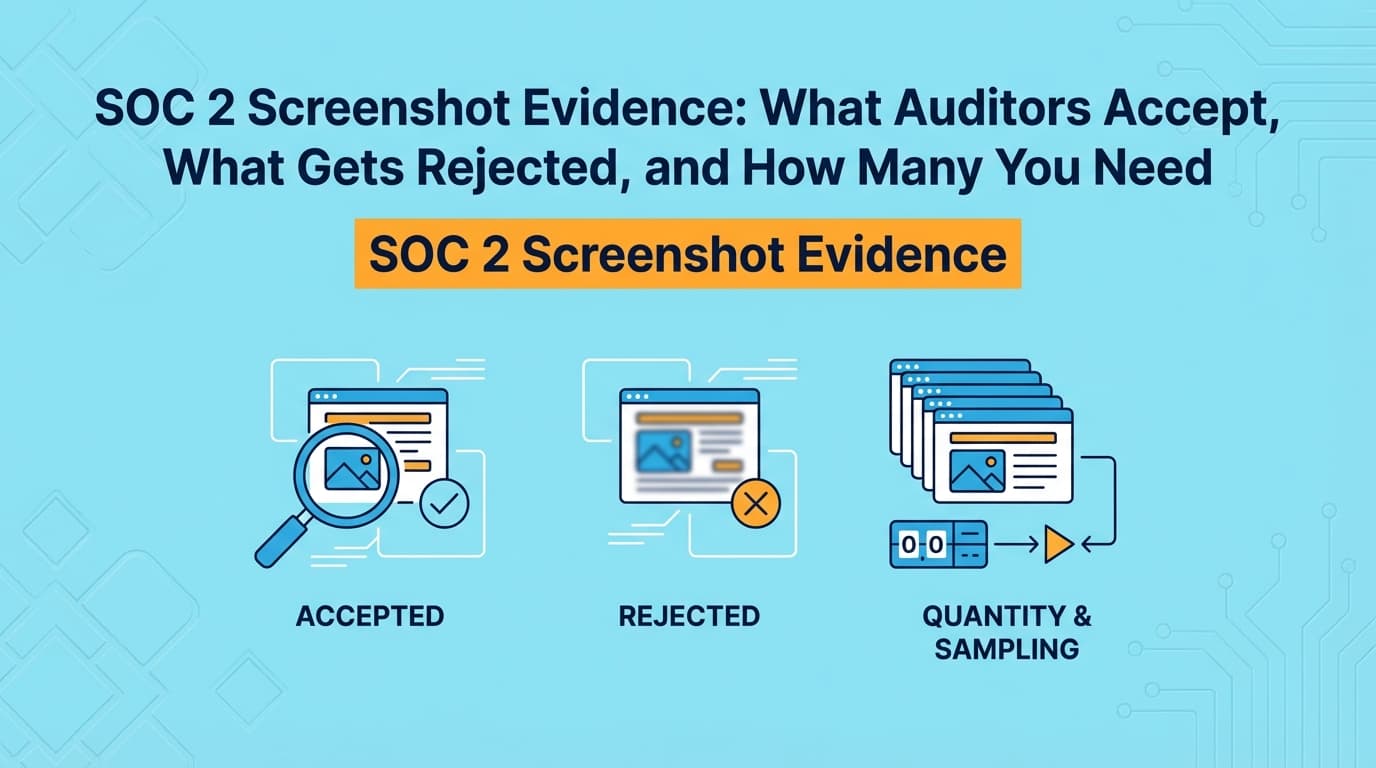
Nothing kills audit momentum faster than a "Request for Information" (RFI) email from your auditor three days before the final report is due. The reason is almost always the same: the evidence you provided was rejected.
SOC 2 audits still rely heavily on screenshots, documentation, and visual proof for application-level controls. While automation tools handle infrastructure logs via API, proving a user access review (CC6.1) or a change management workflow (CC8.1) often comes down to the quality of your visual evidence.
If you are manually capturing these screenshots, you are likely making small errors, cropping out dates, missing URLs, or failing to show the "before and after" state, that render the evidence invalid. This guide explains exactly what auditors accept, how to calculate sample sizes based on AICPA guidance, and how to automate SOC 2 evidence collection to ensure your documentation passes the first time.
What Does an Audit-Ready Screenshot Actually Look Like?
Auditors operate on a principle often called the "Four Corners" rule. If it isn't within the four corners of the document or image, it didn't happen. Context is not assumed; it must be visible.
A screenshot that says "Settings Saved" is useless. A screenshot that shows a list of users but cuts off the URL is suspect.
To be accepted without questions, every piece of screenshot evidence must contain four specific elements:
- System Time and Date: The operating system clock (Windows taskbar or macOS menu bar) must be visible. This proves when the control operated. Browser-based timestamps can be spoofed; system clocks are the gold standard for auditors.
- Source Context (URL/URI): For web applications, the full URL bar must be visible. This proves where the evidence comes from (e.g.,
admin.production.appvs.staging.app). - User Identity: The logged-in user's avatar or profile name should be visible. This proves who performed the action or had access to the view.
- The Configuration State: The image must show the actual setting (e.g., "MFA: Enforced") rather than just a success message.
If you use a tool like Snagit or the native OS screenshot function, it is easy to accidentally crop out the system clock to make the image look "cleaner." Do not do this. Auditors prefer messy, full-desktop screenshots over clean, cropped ones that lack context.
How Many Screenshots Do I Need? (SOC 2 Sampling)
One of the most common questions during audit preparation is: "We deployed code 500 times this year. Do I need screenshots for all 500?"
The answer is no. Auditors use sampling methodologies to test a subset of the population. If the sample passes, they assume the control is operating effectively for the whole population.
While every firm has slightly different internal policies, most follow the AICPA Audit Guide standards. Here is the typical breakdown of how many evidence artifacts you need based on the frequency of the control or the size of the population.
| Control Frequency / Population Size | Typical Sample Size | Examples |
|---|---|---|
| Annual (1 event) | 1 (100%) | Annual penetration test, policy review. |
| Quarterly (4 events) | 2 | Quarterly access reviews, vulnerability scans. |
| Monthly (12 events) | 2–4 | Monthly management meetings, metric reviews. |
| Weekly (52 events) | 5–9 | Weekly database backups (if manual). |
| Daily / Recurring (> 250 events) | 25–40 | Change management tickets, background checks, daily log reviews. |
| Small Population (< 10 items) | 100% (Test All) | New hires (if you only hired 8 people), terminations. |
The "Population" Trap
Before you can provide the samples, you must provide the population.
If you hired 15 people, the auditor will ask for a list of all 15 new hires (the population). They will then pick 3 specific names (the sample) and ask for the onboarding evidence (tickets, background checks, policy acknowledgments) for those 3 specific people.
Common mistake: You cannot pick the samples yourself. If you send the auditor 3 "perfect" examples without providing the full population list first, they will reject them. They must select the samples to ensure randomness.
Why Do Auditors Reject Screenshot Evidence?
We have analyzed thousands of RFI comments from major audit firms. Rejections usually fall into three categories.
1. The "Success Message" Fallacy
You change a password policy setting and take a screenshot of the green banner that says "Successfully Updated."
Why it gets rejected: The banner confirms an action took place, but it doesn't prove what the new state is. Did you set the password length to 8 characters or 12? The success message doesn't say. The Fix: Take the screenshot after the banner fades, showing the actual configuration form with the values visible.
2. Ambiguous Dates
You provide a screenshot of a Jira ticket for a change request. The ticket says "Created: Feb 12".
Why it gets rejected: Feb 12 of which year? If the interface doesn't explicitly show the year, and your system clock isn't visible in the screenshot, the auditor cannot verify if this evidence belongs to the current audit period. The Fix: Always capture the full desktop with the system clock.
3. The "CSV vs. Screenshot" Problem
For User Access Reviews (CC6.1), you export a CSV of users from your database and send that as evidence.
Why it gets rejected: Auditors are skeptical of raw text files (CSVs/Excel) because they are easily editable. A CSV is considered "low reliability" evidence unless you can prove the "Chain of Custody", i.e., proving exactly how the query was run. The Fix: Accompany the CSV with a screenshot of the query being run or the admin panel showing the record count. This validates that the CSV matches the source system.
Where Traditional SOC 2 Automation Stops
If you are using a GRC platform like Drata, Vanta, or Secureframe, you might be wondering why you need screenshots at all. Don't these tools automate everything?
Not quite. These platforms are excellent at collecting structural evidence via APIs. They can query AWS to see if CloudTrail is on. They can check GitHub to see if branch protection is enabled.
However, they cannot capture application-level evidence that lacks a public API. This includes:
- Custom Admin Panels: Your internal "God Mode" tool where support agents can impersonate users.
- Complex SaaS Settings: Configurations in tools like HubSpot, Salesforce, or niche HR platforms that don't expose granular settings via API.
- Visual Workflows: Proving that a specific error message appears on the login screen when a user enters the wrong password.
- Onboarding/Offboarding Flows: Evidence that a user was removed from a specific internal tool that isn't connected to your SSO provider.
For these controls, the GRC tool will simply give you a task that says "Upload Evidence." That means you are back to manual snipping, pasting into Word documents, and hoping you didn't crop out the date.
How to Automate SOC 2 Evidence Collection with Screenshots
The modern approach to closing this gap is using AI agents that can interact with web interfaces just like a human auditor would.
Instead of manually taking 25 screenshots for a sample set, you configure an agent to:
- Log in to the application.
- Navigate to the user list or settings page.
- Capture a full-viewport screenshot (ensuring headers, URLs, and timestamps are visible).
- Highlight the relevant row or setting.
- Generate a timestamped PDF with metadata.
This ensures consistency. An automated agent never "forgets" to include the system clock. It never accidentally crops the URL. It creates a standardized evidence pack that looks exactly the same for every control, every month.
When you hand an auditor a set of uniform, timestamped, un-cropped PDFs, you are signaling that your compliance program is mature. This reduces the scrutiny on other areas of your audit and significantly lowers the chance of those dreaded "evidence rejected" emails.
Learn More About SOC 2 Compliance Automation
For a complete guide to automating the compliance process, see our guide on automating SOC 2 evidence collection, including how to handle the gaps that API-based tools leave behind. You may also find these relevant:
- Do You Actually Need a vCISO for SOC 2? - Why AI is replacing the $10k/month consultant
- The Bootstrapped Founder's Guide to SOC 2 - How to get SOC 2 done without a massive budget
Connect and see
See your SOC 2 with your real systems.
Connect GitHub and cloud read-only. Vera shows your control matrix, policy gaps, and prioritized next actions before you commit to anything.