

Compliance
SOC 2 CC6.1 Evidence Guide: The Screenshots Auditors Actually Need for Access Control
SOC 2 CC6.1 requires proof of logical access controls across all systems, not just those with API integrations. This guide details the specific screenshots, ticket workflows, and configuration evidence needed for user provisioning, RBAC, and MFA to satisfy auditors.
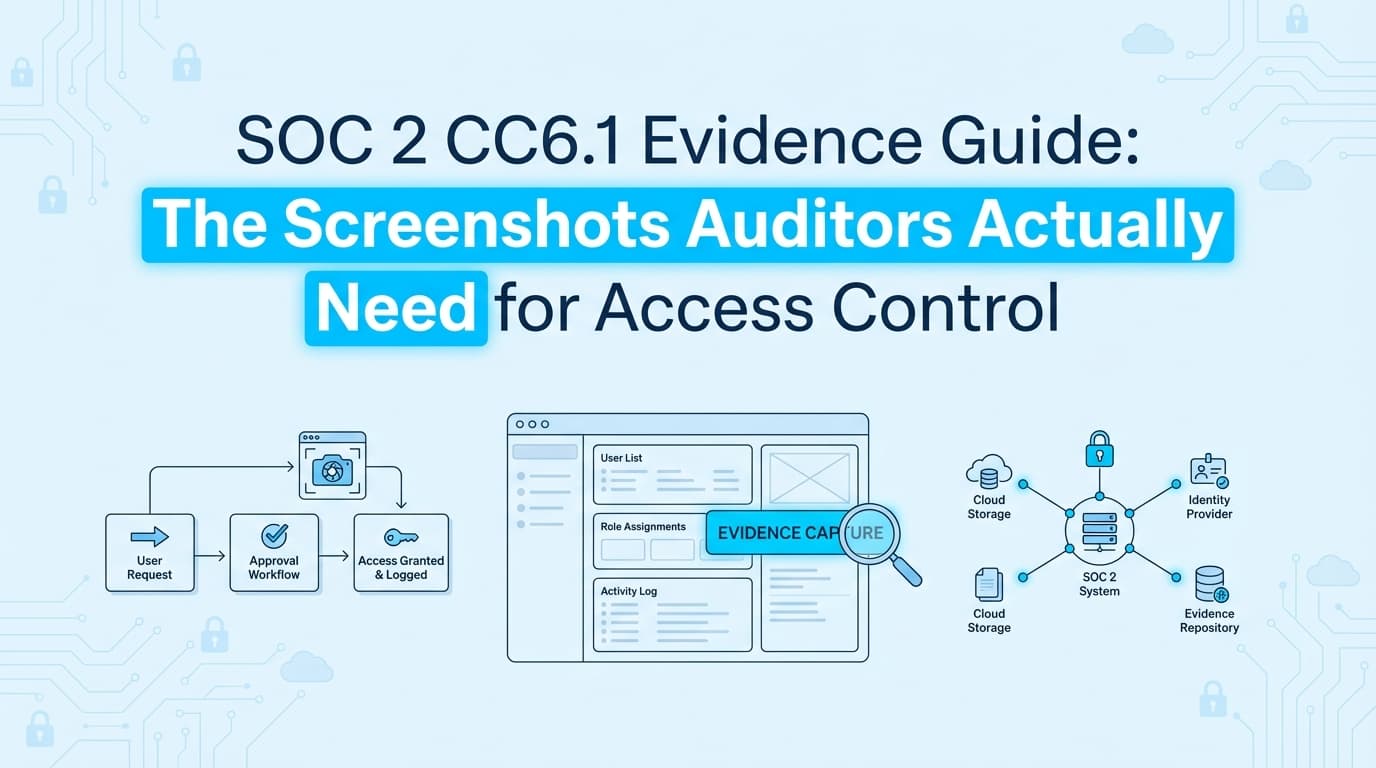
SOC 2 CC6.1 Evidence Guide: The Screenshots Auditors Actually Need for Access Control
SOC 2 audits inevitably stall on Common Criteria 6.1 (CC6.1). While your GRC tool might automatically pull evidence from AWS or Okta via API, auditors require evidence for every in-scope system, including the custom admin panels, legacy tools, and internal dashboards that lack API integrations. Closing that gap is what automating SOC 2 evidence collection with screenshots is built for, capturing the application proof a dashboard like Drata can't reach.
For these systems, "evidence" usually means screenshots. You need to prove that logical access is restricted, authorized, and managed throughout the user lifecycle. Automation tools that rely solely on APIs often leave a 20-30% gap in your evidence population here, forcing teams to manually screenshot user lists and permission settings.
This guide breaks down exactly what screenshots and documentation satisfy CC6.1 requirements for access controls, Role-Based Access Control (RBAC), and Multi-Factor Authentication (MFA).
What Evidence Do Auditors Actually Require for CC6.1?
Auditors need to verify two things for CC6.1: Design Effectiveness (is the control set up correctly?) and Operating Effectiveness (did it work consistently over time?).
For logical access, this translates to three specific evidence "buckets":
- The "Joiner" Workflow: Proof that new access was approved before it was granted.
- The "Settings" Configuration: Visual proof that the system enforces RBAC and MFA.
- The "Leaver" Workflow: Proof that access was revoked within your SLA (usually 24 hours) after termination.
If you are using a GRC platform like Drata or Vanta, they handle the "Settings" evidence for integrated apps (like GitHub or Google Workspace). For everything else, your production database, your proprietary back-office tool, or that one legacy billing system, you need to capture the evidence manually or use an agent-based automation tool.
How to Document New User Provisioning (The "Joiner" Workflow)
The most common mistake in provisioning evidence is providing the system log without the approval context. An auditor doesn't just want to know when User A was created; they want to know who authorized it.
For a sample of new hires selected by the auditor, you must provide a "packet" containing:
- The Access Request Ticket: A screenshot of the Jira, Asana, or ServiceNow ticket showing the request for access.
- The Approval Timestamp: The ticket must show an explicit approval (comment or status change) from a manager before the access was provisioned.
- The System Creation Log: A screenshot or log entry from the application showing the user account creation date.
The Audit Trap: If the user was created at 9:00 AM, but the ticket was approved at 10:00 AM, you have a deviation. The evidence must prove the sequence: Request → Approval → Provisioning.
Proving RBAC and Least Privilege: Settings vs. Logs
Role-Based Access Control (RBAC) is difficult to prove with logs alone. Logs show what a user did, not what they could have done. To prove Design Effectiveness for Least Privilege, you need configuration screenshots.
Required Screenshots for RBAC
For every in-scope application that has distinct roles (e.g., Admin, Editor, Viewer), capture:
- Role Definition Screens: A screenshot showing what permissions are assigned to the "Admin" role versus the "Viewer" role. Auditors need to see that "Viewer" cannot delete data or modify configurations.
- User List with Roles Visible: A screenshot of the user management page showing the list of active users and their assigned roles.
- The "Least Privilege" Check: If you have 50 employees, and 48 of them are "Admins," you will fail the Least Privilege test even if you have RBAC enabled. The evidence must show that administrative access is restricted to a small, appropriate group.
Handling Custom Admin Panels
Internal tools often don't have nice "Role Definition" pages. In these cases, you may need to screenshot the code snippet (from GitHub/GitLab) that defines the authorization logic (e.g., the middleware requiring is_admin=True), combined with a screenshot of the database table showing which users have that flag.
What Screenshots Prove MFA Enforcement?
CC6.1 works closely with CC6.1.2 (or CC6.3 in some mappings) regarding MFA. Simply having MFA available isn't enough; you must prove it is enforced.
The "Enforce" Toggle
For SaaS apps (Salesforce, HubSpot, etc.) that don't support SSO, you must screenshot the security settings page showing that MFA is set to "Required" for all users. A screenshot showing it is merely "Enabled" or "Optional" is insufficient.
Service Account Exceptions
A major friction point is "Service Accounts" or "Bot Users" that cannot perform MFA. If your evidence shows "MFA Enforced: False" for a user named ci-deploy-bot, the auditor will flag it.
The Fix: You need an Exception Evidence Packet.
- Screenshot of the User List: Identifying the account as a service account.
- Screenshot of Compensating Controls: Usually an IP Allowlist configuration or an API Key rotation policy setting. This proves that while MFA is off, access is still restricted (CC6.1).
The Offboarding Evidence Trail (The "Leaver" Workflow)
Terminations are the highest-risk area for SOC 2. Auditors will pull a sample of employees who left the company and check if their access was revoked within the window defined in your policy (typically 24 hours).
For every sampled termination, you need:
- HR Termination Record: Showing the official termination date and time.
- System Revocation Evidence: A screenshot or log from the application showing the account status as "Deactivated," "Suspended," or "Deleted," with a timestamp.
The Gap: Most teams miss the "Shadow IT" apps. You might revoke Okta access instantly, but if the user had a separate login for a marketing tool or a legacy admin panel, and that account stayed active for 3 weeks, that is a control failure.
Where Traditional SOC 2 Automation Stops
This is where the difference between API-based GRC tools (like Drata or Vanta) and evidence automation (like Screenata) becomes clear.
| Feature | GRC Tools (Drata/Vanta) | AI Compliance Officer (Screenata) |
|---|---|---|
| Method | API Integration | Browser-based Agent + AI Policy & Guidance |
| Scope | Supported Integrations Only (AWS, Okta, GitHub) | Any Web Application + Policy Writing + Control Mapping |
| RBAC Evidence | Metadata ("User has role 'Admin'") | Visual Context (Screenshots of what 'Admin' can actually do) |
| Custom Apps | Manual Upload Required | Automated Capture |
| Compliance Guidance | Basic checklists | AI-driven readiness scoring + remediation steps |
| Audit Experience | "Here is a JSON list of users" | "Here is a PDF showing the settings page" |
GRC tools are excellent for the 80% of your stack that is standard (AWS, Google Workspace). They fail at the 20% that is custom or niche. For those, they create a "placeholder" task asking you to manually upload evidence. That manual work is what kills audit timelines.
Checklist: The CC6.1 Audit Pack
To prepare for your audit, ensure you have these artifacts ready for your sample selection.
1. The Matrix
- User Access Review (UAR): A spreadsheet listing every user in every in-scope system, their role, and a "Reviewed By" sign-off column.
2. The Settings (Design Effectiveness)
- Password Policy Screenshot: Showing length/complexity requirements (if not using SSO).
- MFA Enforcement Screenshot: Showing the "Enforce" toggle is on.
- Role Definition Screenshot: Showing permissions for each role type.
3. The Samples (Operating Effectiveness)
- New Hire Packet (x5): Ticket + Approval + Creation Log.
- Termination Packet (x5): HR Ticket + Revocation Log/Screenshot.
- Exception List: Documented list of service accounts with screenshots of IP restrictions.
Learn More About SOC 2 Compliance Automation
For a complete guide to automating this entire process, including the custom applications that APIs miss, see our guide on automating SOC 2 evidence collection, which covers how to replace manual screenshotting with autonomous agents. You may also find these relevant:
- Do You Actually Need a vCISO for SOC 2? - Why AI is replacing the $10k/month consultant
- The Bootstrapped Founder's Guide to SOC 2 - How to get SOC 2 done without a massive budget
Connect and see
See your SOC 2 with your real systems.
Connect GitHub and cloud read-only. Vera shows your control matrix, policy gaps, and prioritized next actions before you commit to anything.