

Compliance
How Drata Works for SOC 2: Architecture, Integrations, and Limits
Drata connects to 75+ integrations via read-only APIs to monitor your infrastructure. This guide explains how Drata's architecture works, which integrations matter most for SOC 2, where the monitoring model hits its limits with application controls and attestations, and how Vera, an agent that runs continuous compliance, does the work a dashboard only flags.
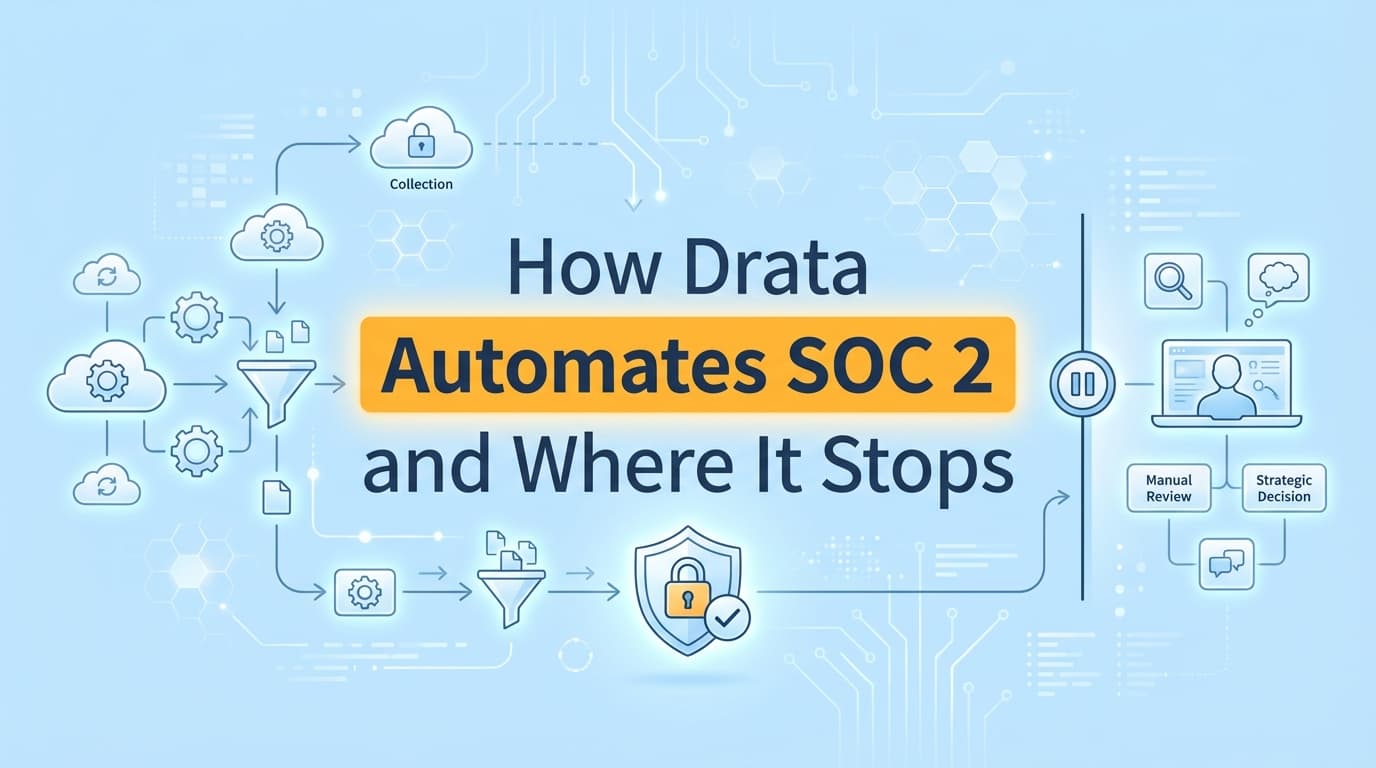
Drata automates SOC 2 by using read-only API integrations to monitor cloud infrastructure, identity providers, and developer tools. It continuously collects evidence for technical controls like database encryption, MFA enrollment, and background checks. Where it stops is application-layer workflows, manual business processes, and the attestations only a person can confirm, which it flags as manual and waits on. Screenata closes that gap with Vera, an agent who runs the program: she does the collection a dashboard only flags, chases the sign-offs a dashboard can't, and files signed, traceable evidence, alongside Drata or in place of the platform-plus-consultant stack.
Why Does SOC 2 Automation Have Limits?
The 80/20 split defines how compliance tooling works today. A platform like Drata is a capable operating layer for monitoring, but it is bounded by the availability of APIs.
Most SOC 2 controls fall into two categories:
- Infrastructure controls: proof of state, such as "Is the S3 bucket encrypted?" These automate cleanly over API.
- Process and application controls: proof of execution, such as "Did a human actually review this access request?" These live in proprietary UIs or in someone's judgment, where no API exists.
Because a dashboard cannot see inside your application's front end or your internal tools, it cannot automate the visual evidence required for roughly 20% of your controls, and it cannot produce the attestations behind your periodic reviews. It flags those and waits.
How Drata's Architecture Works
Drata is a monitoring platform. It connects to your stack over read-only APIs, runs automated tests against the AICPA Trust Services Criteria on a schedule, and shows the results on a dashboard. The design is deliberately non-invasive: it reads configuration, it does not act on your systems. That is its strength for continuous monitoring and the reason it cannot do the collection work that happens outside an API.
1. Cloud Infrastructure (AWS, GCP, Azure)
Drata monitors your cloud environment against security baselines.
- Encryption at rest: verifies that RDS and S3 instances are encrypted.
- Logging: confirms that CloudTrail or an equivalent is enabled.
- Network security: checks that security groups don't leave port 22 open to the world.
2. Identity and Access (Okta, Google Workspace)
By syncing with your IdP, Drata automates evidence for:
- MFA enforcement: proving that active users have multi-factor authentication enabled.
- Onboarding and offboarding: tracking when users are added or removed.
3. Developer Workflows (GitHub, GitLab)
Drata monitors repository settings to satisfy change-management controls.
- Branch protection: verifying that the main branch requires a reviewer.
- Vulnerability scanning: checking that Dependabot or a similar tool is active.
4. Personnel and Policy Management
Drata automates the human side of the record:
- Background checks: integrating with tools like Checkr.
- Policy acceptance: tracking when employees sign the code of conduct or InfoSec policy.
Where Does Drata's Automation Stop?
The last mile of SOC 2 involves controls that require visual proof of a process or a decision only a person can attest to. These are the areas where Drata users revert to manual screenshotting and Slack chasing.
The 20% Manual Gap
| Control ID | Category | Why a dashboard stops | What it takes to satisfy |
|---|---|---|---|
| CC6.1 | Logical Access | Sees the IdP, not the internal app roles | Evidence of Admin vs. User permissions in your app |
| CC7.2 | Change Management | Checks GitHub settings, not the manual QA sign-off | Proof of a successful UAT in staging |
| CC8.1 | System Operations | Monitors the tool, not the human review | Evidence that a security alert was triaged |
| CC6.7 | Physical Access | No API for office security | Logs of badge access and visitor sign-ins |
| Custom | Proprietary workflows | No API for your SaaS dashboard | Visual proof of data deletion or privacy settings |
| Periodic | Access reviews | Flagged as due only | A person confirms; someone chases the sign-off |
How Vera Does the Work a Dashboard Only Flags
Vera runs the compliance program as an agent instead of a dashboard you feed. She scans your infrastructure read-only (the same layer Drata monitors), scopes your control matrix, drafts policies grounded in what she finds, and then works the controls on a schedule. For everything a dashboard marks manual, she does the collection.
Her evidence mix is the honest breakdown: about 70% fully API-automated, roughly 9% automated screenshots (the browser extension plus a vision model scoring the capture), about 9% guided capture, and around 5% ingested from your inbox. Zero percent comes from a person uploading files into a dashboard. Screenshots are one of several ways she collects evidence, and the one an API can never reach, not the identity of the product.
How Vera extends past a dashboard's limits
- Application capture instead of manual screenshots. You (or Vera, on a schedule) run a control test once through the Screenata browser extension. It captures timestamped screenshots, a DOM snapshot, and metadata, and a vision model scores the result against the control.
- Attestation chasing instead of a red square. For an access review or exception, Vera DMs the right person in Slack or Teams, reminds at 24 hours, escalates at 48, and files the reply as evidence.
- Signed, traceable packaging. Every artifact is hashed, timestamped (RFC 3161), and signed, and traces back through a control test to a policy claim. If you keep Drata, Vera syncs the pack into the matching control.
Step by Step: Covering CC6.1 (Logical Access)
CC6.1 requires proof that access to protected functions is restricted to authorized users. Here is how the work gets done when Vera runs alongside Drata.
Step 1: The dashboard confirms the IdP
Drata confirms your users are in the correct Okta groups. That satisfies the infrastructure portion of the control.
Step 2: Vera captures the app-level proof
Since a dashboard cannot see your internal settings page, Vera runs the test: log in as a "Viewer," attempt the admin-only delete, and let the app return "Access Denied."
Step 3: Signed evidence, not a screenshot in a folder
Vera detects the "Access Denied" result, captures it, redacts PII like the user's email, and writes the narrative: the Viewer role is restricted from administrative delete functions.
Step 4: Sync back to the dashboard
Vera pushes the signed pack into Drata under CC6.1. The dashboard now shows the control covered, and no one opened a document editor or a snipping tool.
Drata vs. Vera
| Capability | Drata (monitoring dashboard) | Vera (agent that runs the program) |
|---|---|---|
| Primary function | Infrastructure monitoring | Runs the compliance work end to end |
| Data source | Read-only APIs (AWS, GitHub, Okta) | Same scans plus application capture and attestations |
| Evidence type | JSON and metadata | API data plus signed, traced packs |
| Application UI | Flagged manual | Captured and scored |
| Attestations | Flagged as due | Chased in Slack and filed |
| Policy writing | Templates you fill in | Drafted from your attested reality |
| Compliance guidance | None, you add a consultant | The agent does the operating work |
What the Whole Thing Costs
Drata alone still needs a vCISO or consultant (from a $5K readiness project to a $10K monthly retainer) to write policies, decide what to fix, and run the program the dashboard only monitors. With the auditor and your team's time counted, a traditional first year to a SOC 2 Type II lands at $77K-$178K. Vera replaces both the platform and the consultant: Screenata is $5,988 a year ($499/mo) per framework, bringing the same first year to $22K-$33K. You get 20+ native integrations, 650+ checks, and 27+ agent tools across Slack, email, the CLI and a Claude Code MCP, and GitHub pull-request reviews.
Best Practices for Drata Users
- Map your manual controls early. Use Drata's controls view to filter for anything without an automated test. Those are the controls to hand to Vera first.
- Standardize the evidence. Auditors dislike inconsistent formats. Vera packages every control the same way, OCR'd so an auditor can search hundreds of pages for a phrase like "Access Denied."
- Collect continuously. Don't wait for the audit period to close. Let Vera capture your quarterly access reviews and change tests as they happen.
- Redact at capture. Never upload unredacted production data to your GRC. Vera blurs sensitive information at the moment of capture.
Frequently Asked Questions
Does Drata automate everything for SOC 2?
No. It automates the technical infrastructure checks, roughly 80%. Application-specific permissions, manual change approvals, and periodic attestations are flagged as manual and left to you, unless an agent like Vera does that work.
Why does my auditor still ask for evidence if I use Drata?
Auditors need sufficient and appropriate evidence. An API check says a setting is on; the auditor often wants to see the actual user experience or the result of a manual test to confirm the control works as your policy describes. Vera captures exactly that.
How does Vera work with Drata?
Vera does the collection a dashboard flags, then exports signed evidence packs into the Drata evidence library, mapped to the right control. Your Drata dashboard stays the single source of truth your auditor logs into, and Vera keeps it green.
Can a dashboard see inside my custom-built SaaS?
No. Drata connects to common third-party tools over API and cannot see the internal UI or logic of your proprietary app without a custom integration, which is usually more work than letting Vera capture the evidence directly.
How much time does this save?
Teams typically spend 40 to 80 hours per SOC 2 Type II audit on manual evidence collection. Vera reduces that to review time by recording, formatting, signing, chasing, and syncing the application-level and attestation evidence.
Key Takeaways
- Drata automates infrastructure. It does not write your policies, read your codebase, capture your application evidence, or chase attestations.
- The 20% gap is real. Application controls and periodic attestations cannot be produced by a monitoring dashboard alone.
- A dashboard flags the work; Vera does it. She scans the same infrastructure, captures the application evidence, chases sign-off in Slack, and files signed, traceable packs.
- For most startups Vera replaces both the platform and the consultant, bringing year one to a SOC 2 Type II to $22K-$33K versus $77K-$178K for the traditional stack.
- Focus on CC6.1 and CC7.2. These are the most common places a dashboard stops and where teams waste the most time.
Learn More About SOC 2 Automation
- The Bootstrapped Founder's Guide to SOC 2 covers the full cost breakdown and what to expect.
- Is Drata Enough to Automate SOC 2 Compliance Completely?
- What Auditors Still Ask for After Drata Automation: Missing SOC 2 Evidence
- Do You Actually Need a vCISO for SOC 2? explains why most startups no longer need a consultant.
- Why ChatGPT SOC 2 Policies Fail Audits shows what auditors actually want in your policies.
- How to Automate SOC 2 Evidence Collection is the comprehensive automation guide.
Connect and see
See your SOC 2 with your real systems.
Connect GitHub and cloud read-only. Vera shows your control matrix, policy gaps, and prioritized next actions before you commit to anything.