

SOC 2
How to Document SOC 2 Endpoint Security with MDM Screenshots
SOC 2 auditors require more than a device list; they need proof that endpoint security policies are configured correctly. This guide explains the specific MDM screenshots required for controls CC6.1 and CC6.8, distinguishing between population evidence and configuration evidence.
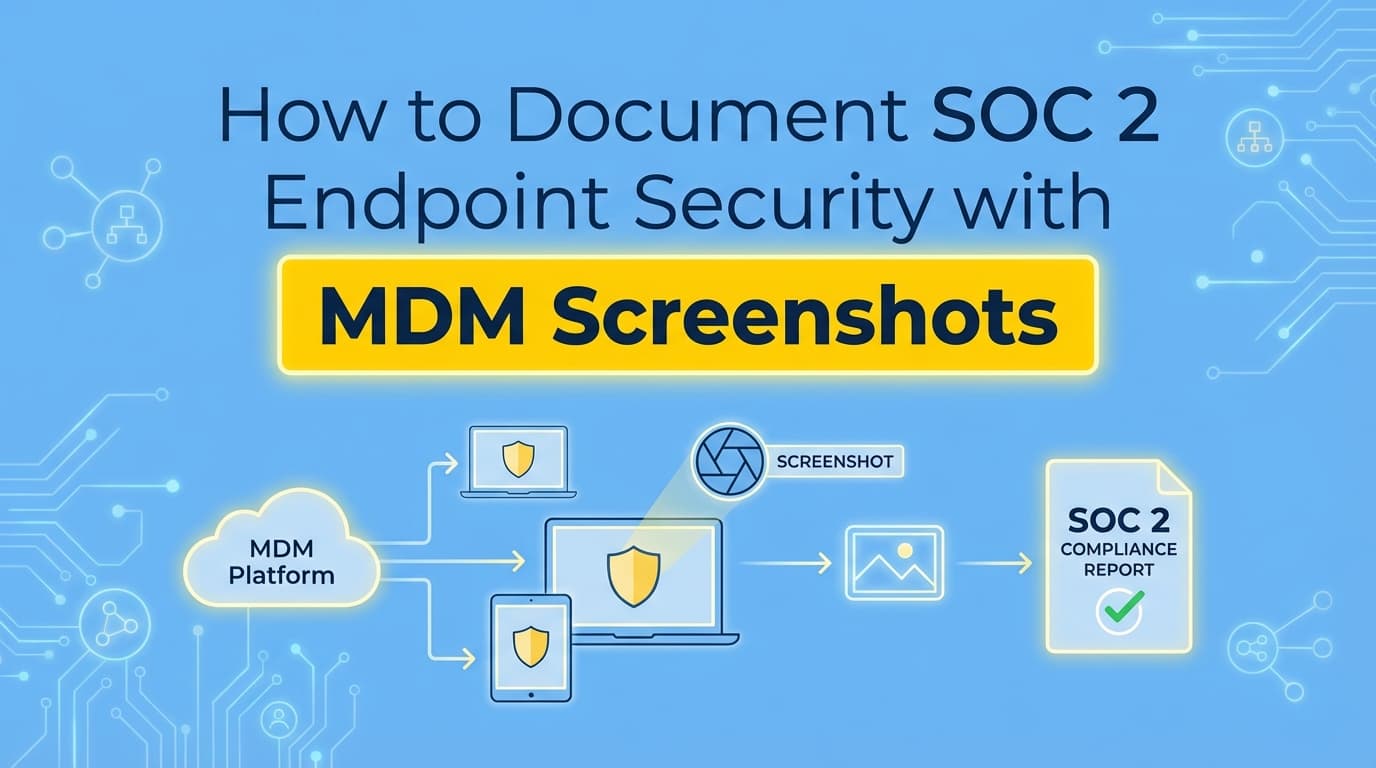
SOC 2 audits require specific evidence that your endpoint security controls are designed effectively and operating as intended. While GRC platforms often automate the collection of device lists via API, they frequently miss the configuration evidence, specifically screenshots of your MDM policies, that auditors need to verify controls like disk encryption and screen locks. Automating SOC 2 evidence collection for these settings ensures you have audit-ready documentation without scrambling to take manual screenshots during your audit window.
Most teams assume that connecting Drata or Vanta to Jamf or Intune is the end of the story. It isn't. The API connection proves that Device A is compliant, but it rarely proves why it is compliant. This article explains exactly what evidence you need to extract from your MDM to satisfy a picky auditor.
What Endpoint Security Evidence Do SOC 2 Auditors Actually Require?
To pass a SOC 2 Type 2 audit, you need to provide two distinct types of evidence for endpoint security. Most startups provide the first and forget the second.
1. Population Evidence (The "What")
This is the list of all workstations in scope. It shows the status of each device against your policy.
- Artifact: A list (CSV or PDF) export from your MDM showing Hostname, Serial Number, User, Disk Encryption Status, and OS Version.
- Automation: GRC tools handle this well. They pull the list via API and flag devices that don't match the rules.
2. Configuration Evidence (The "How")
This is the "Design of Control" evidence. Auditors need to see the actual policy settings in your MDM admin panel that force the devices to behave securely. They need to verify that you didn't just get lucky that everyone is encrypted, but that you enforced it.
- Artifact: Screenshots of the Configuration Profiles in Jamf, Intune, or Kandji.
- Automation: GRC tools generally do not capture this. You usually have to screenshot these settings manually or use an evidence automation tool like Screenata.
Which SOC 2 Controls Require MDM Evidence?
While every auditor's request list is slightly different, endpoint security evidence primarily maps to two Trust Services Criteria:
| SOC 2 Control | Requirement | MDM Evidence Required |
|---|---|---|
| CC6.1 (Logical Access) | Restrict logical access to information and systems to authorized users. | Screen Lock Policy: Screenshot showing the idle timeout is set (e.g., 15 minutes) and requires a password to unlock. Password Policy: Screenshot showing complexity requirements (length, rotation) enforced on the device. |
| CC6.8 (Malicious Software) | Prevent or detect and act upon the introduction of malicious software. | Disk Encryption: Screenshot showing FileVault (macOS) or BitLocker (Windows) is enforced. Antivirus/EDR: Screenshot showing the agent (CrowdStrike, SentinelOne) is required and cannot be removed by the user. Auto-Updates: Screenshot showing OS updates are forced or managed. |
Checklist: The Specific MDM Screenshots You Need
Don't wait for the auditor to ask. If you are using a standard MDM like Jamf, Kandji, or Microsoft Intune, prepare these specific screenshots. Ensure every screenshot includes a system timestamp to prove it was active during the audit period.
1. Disk Encryption Configuration
Auditors look for the "Enforce" toggle.
- Jamf: Computers > Configuration Profiles > Security & Privacy > FileVault > "Require FileVault 2"
- Intune: Endpoint security > Disk encryption > Create Profile > "Require Device Encryption"
- Kandji: Library > FileVault > "Enable FileVault"
2. Screen Lock & Password Policy
You need to prove that if an employee walks away, the laptop locks.
- Jamf: Computers > Configuration Profiles > Security & Privacy > General > "Require password after sleep or screen saver begins" and "Start screen saver after..."
- Intune: Configuration Profiles > Device Restrictions > Password > "Maximum minutes of inactivity before screen locks"
3. Automatic Updates (Patch Management)
Proof that you don't rely on users remembering to update macOS or Windows.
- Jamf: Computers > Policies > Software Updates
- Kandji: Library > OS Updates > "Automatically install new updates"
4. Antivirus / EDR Deployment
If you use a separate EDR tool (like CrowdStrike), you need to prove the MDM pushes it to every device.
- Evidence: Screenshot of the "Install Package" policy in your MDM that deploys the EDR agent automatically upon enrollment.
Where Traditional SOC 2 Automation Stops
This is the friction point for most compliance managers. You pay for a GRC platform, connect the integrations, and think you're done. Then the auditor asks for "screenshots of the encryption configuration profile."
Why does this happen?
GRC platforms like Drata and Vanta rely on APIs to query the state of devices. They ask the MDM: "Is Laptop-01 encrypted?" The MDM says "Yes." The GRC tool marks it green.
However, SOC 2 auditors, especially for Type 2 reports, need to test the design of the control. They need to verify that the organization has a mechanism to force encryption, not just that encryption happens to be on. APIs rarely expose the visual configuration logic in a way that satisfies an auditor's need to see the "rule."
Consequently, you end up manually logging into Jamf or Intune every quarter to take screenshots of settings that haven't changed. This manual work is exactly where evidence gaps occur. If you forget to screenshot the policy during the audit window, you cannot retroactively prove the policy was active during that time.
How to Handle Evidence for Unmanaged Devices (Linux & BYOD)
The biggest headache in device management evidence is the equipment that doesn't fit your MDM.
- Linux Workstations: Often used by developers but rarely supported fully by standard MDMs like Jamf or Intune.
- Contractor Laptops (BYOD): Devices you don't own but that access your data.
For these devices, the "API check" fails because there is no API connection. You must fall back to manual evidence.
The "Linux Problem" Evidence Pack
If you have developers on Ubuntu/Fedora, you likely use a configuration management tool (like Ansible or Chef) or rely on manual enforcement.
- Configuration Script: Screenshot or export of the Ansible playbook enforcing LUKS encryption.
- Terminal Output: A screenshot of a sample device running
lsblkorcryptsetup statusto show encryption is active. - Population: A manually maintained list of Linux devices and their owners.
The Contractor/BYOD Evidence
If contractors access production data, auditors will demand proof their devices are secure. Since you can't install an MDM agent on a personal laptop, you have two options:
- VDI (Virtual Desktop): Force contractors to use Amazon WorkSpaces or similar. Evidence is easy, screenshot the VDI configuration settings.
- Manual Attestation: Require contractors to send a screenshot of their system settings (showing encryption and antivirus) before granting access. You must store these screenshots as audit evidence.
Why Auditors Reject CSV Exports for Configuration Evidence
You might wonder, "Can't I just export the policy settings as a CSV?"
Technically, yes, some MDMs allow this. However, auditors are skeptical of CSVs for configuration evidence (as opposed to population lists) for two reasons:
- Readability: A CSV dump of an Intune policy is a mess of XML or JSON strings. An auditor does not want to parse raw XML to find the
<dict><key>maxInactivity</key><integer>15</integer></dict>line. A screenshot of the UI saying "15 minutes" is instant proof. - Chain of Custody (IPE): Information Provided by the Entity (IPE) must be accurate and complete. A CSV is easily editable. A screenshot of a third-party dashboard, ideally with a URL and timestamp visible, is harder to forge and easier to validate.
Summary
Documenting endpoint security for SOC 2 requires a two-layered approach. Use your GRC platform to automate the population evidence (the list of compliant devices). But do not neglect the configuration evidence (the screenshots of your MDM policies).
If you rely solely on the API integration, you will likely face a scramble during audit week to capture screenshots of FileVault, screen lock, and auto-update policies. By understanding the distinction between device status and policy enforcement, you can build an evidence repository that auditors accept without pushback.
Learn More About SOC 2 Evidence Automation
For a complete guide to automating SOC 2 evidence collection, see our guide on automating SOC 2 evidence collection, including how to capture application-level configuration screenshots that APIs miss.
Connect and see
See your SOC 2 with your real systems.
Connect GitHub and cloud read-only. Vera shows your control matrix, policy gaps, and prioritized next actions before you commit to anything.