

Technology
How AI Agents Capture Screenshots Automatically for Audits
An AI compliance agent named Vera captures application screenshots as one of several ways she collects audit evidence. She runs the control test, the browser extension captures each step with a DOM snapshot and signed timestamp, a vision model scores whether the shot proves the control, and every capture is mapped to a Trust Services Criterion and signed. This guide covers how that capture works, where it fits in an agent-run program, and what auditors require to accept it.
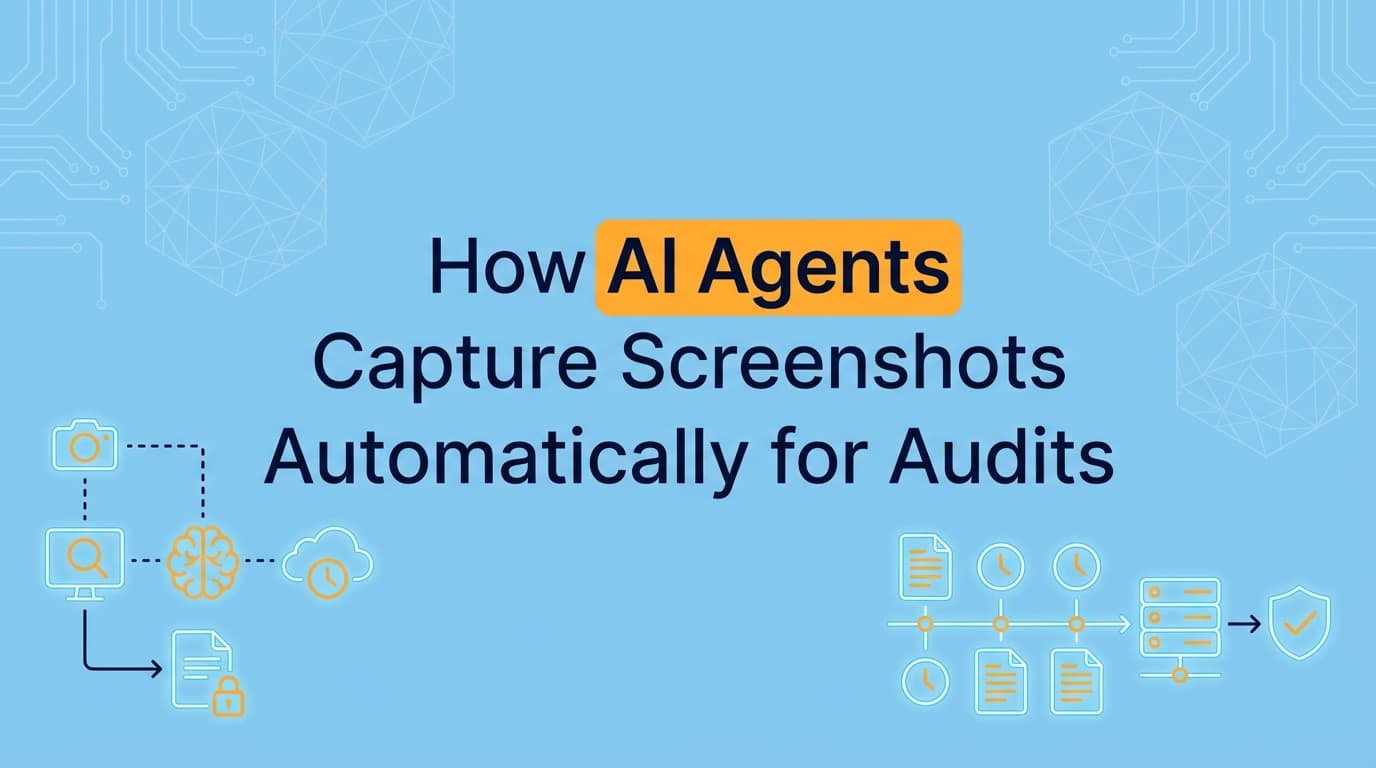
An AI agent captures screenshots for audits by running the control test itself, capturing the screen at each meaningful step through a browser extension, and packaging each shot with a DOM snapshot, a signed timestamp, the tester's identity, and a vision-model reading of what the screen proves. The capture is then mapped to a control framework such as SOC 2 (CC6.1) or ISO 27001 (A.9). At Screenata the agent is Vera, and screenshot capture is one of several ways she collects evidence, accounting for roughly 9% of the total. This guide explains how that capture works, where it fits in the larger job she runs, and what auditors check before they accept it.
Where Screenshot Capture Fits in an Agent-Run Program
Before getting into how the camera works, it helps to see how small a slice of the job it is. A compliance dashboard monitors your infrastructure through API integrations and leaves the rest to your team. An agent does the work end to end, and screenshots are one tool in that work.
| How Vera collects evidence | Share | What it covers |
|---|---|---|
| API scans | ~70% | Cloud config, identity logs, endpoint posture, fully automated |
| Automated screenshots | ~9% | UI access controls, RBAC tests, workflow proof APIs can't reach |
| Guided collection | ~9% | Step-by-step flows for controls that need a specific path |
| Inbox ingestion | ~5% | Forwarded emails and Slack file drops, auto-classified |
| Attestations | the rest | Answers only a person can give, chased in Slack and Teams |
So when people ask "can an AI take the screenshots?", the more useful question is "can an agent run the whole program?" The screenshots are the part that needs a camera. The other 90-plus percent is API scans, inbox ingestion, and the attestation-chasing a dashboard can only flag on a to-do list.
Why Manual Screenshot Collection Slows an Audit Down
For high-growth engineering teams, application-level evidence is the part of an audit that still lands on a person. Platforms such as Vanta and Drata read your cloud and identity config through APIs, but they cannot see your product's UI. That leaves a set of controls behind your application that someone has to prove by hand.
Compliance owners and engineers typically spend 40 to 80 hours per audit cycle on that manual work:
- Logging into environments to demonstrate access restrictions.
- Capturing 15 to 20 screenshots per control test to satisfy an auditor's completeness bar.
- Renaming files and mapping them to Trust Services Criteria in a spreadsheet or GRC tool.
- Writing a narrative for each image to explain what the auditor is seeing.
Every one of those steps is a place for an error to creep in:
| Risk factor | Impact on the audit |
|---|---|
| Human error | A missing timestamp or a cropped-out UI element can turn into an exception in the SOC 2 report. |
| Inconsistency | Five people capture evidence five ways, which reads as five formats to the auditor and generates follow-up questions. |
| Stale data | Manual screenshots are point-in-time, collected in a rush, and out of date the moment the audit window moves. |
| High cost | Diverting senior engineers to take screenshots costs real productivity, and the work repeats every cycle. |
A dashboard flags that these controls need evidence. It does not collect it. That collection is the job Vera takes on.
How Vera Captures Screenshots Automatically
For controls that live behind your application's UI, Vera uses the Screenata browser extension and a vision model. A capture is not a lone image. It is a packaged piece of evidence with provenance attached.
She runs the test, the extension captures each step
Vera (or a teammate she prompts for a step only a person can perform) runs the control test once. For CC6.1, that means attempting to reach an admin panel as a restricted user. As the test runs, the extension captures the screen at each meaningful moment: the login as the low-privilege user, the navigation attempt, the access-denied response, and the role configuration that explains why access was blocked. Vera captures the workflow end to end, so the sequence is intact rather than a lone screenshot of the final state.
What travels with every capture
The visible image is the top layer. Underneath, each capture carries:
- The screenshot itself, unaltered.
- A DOM snapshot of the page's HTML, proof the elements existed as shown and weren't pasted in afterward.
- The URL and page title.
- A timestamp synced to NTP, to the millisecond.
- The identity of whoever performed the test.
- Browser and system context.
Text inside the screenshots is read and indexed at capture time, so an auditor can search hundreds of pages of evidence for "Access Denied" or "Approved" instead of scrolling a folder of PNGs.
What the vision model adds
A raw image becomes evidence once something understands it. Vera's vision model reads the screen the way a reviewer would: button labels, error messages, role badges, permission indicators, and state signals such as green checks and red denials. From that it scores whether the capture actually demonstrates the control (not merely relates to it) and attaches a confidence rating. High-confidence captures flow into the pack. Low-confidence ones are flagged for your review rather than guessed. PII in the screenshots is redacted before anything is filed, so sensitive fields are masked at capture time.
This is the part no dashboard can replicate. An API integration can read your AWS config or your Okta logs, but it cannot see your product's UI. The application layer is exactly where Vanta and Drata go blind, and the capture engine is how Vera sees it.
Step by Step: The Automated Evidence Workflow
Here is what running a single control looks like end to end, using CC6.1 (logical access) as the example.
Step 1: Vera scopes the control
Vera loads the context for the control she is testing, knowing CC6.1 needs proof that a restricted user is blocked from a protected function. She already knows, from the read-only scan of your infrastructure, which controls need a UI screenshot versus an API scan versus a human attestation.
Step 2: Run the workflow
The test runs against a low-privilege account:
- Log in as a read-only user.
- Navigate to an admin or billing settings page.
- Attempt a restricted action.
- Observe the system blocking it with a 403 or a "you do not have permission" response.
Step 3: Automatic capture and mapping
During Step 2 the extension captures each meaningful moment: the restricted role, the navigation attempt, and the final access-denied state. Vera maps the capture to CC6.1, and to the equivalent control in ISO 27001 (A.9.1.2) or HIPAA (§164.312(a)(1)) through a shared control catalog. One capture, mapped everywhere it applies.
Step 4: Evidence pack generation
Vera compiles the captures into a structured evidence pack:
- A formatted PDF with a control objective, a step-by-step narrative of what the test showed, and a pass/fail determination with rationale.
- A metadata JSON for machine-readable review and GRC sync.
- The raw, high-resolution screenshots.
- A signed manifest: SHA-256 hashes, a digital signature, and an RFC 3161 timestamp.
She writes the description of real evidence. She never invents the evidence itself.
The Proof Chain: Why This Is Evidence, Not a Folder of PNGs
What separates an agent's output from a pile of screenshots is the chain of custody. Every artifact traces back through a control test to a specific sentence in your policy. An auditor can start from a policy claim, follow it to the control test, and land on the signed evidence behind it, then verify the signature independently with a free CLI, no Screenata account needed.
That chain is deterministic where it can be. Vera's policies are generated from your attested operational reality, so the same attestation produces the same control language every time, with no model rewriting your policy sentences. Determinism is what lets an auditor re-derive a claim rather than take it on faith. It is the answer to "how do I trust this?", not a marketing line.
Tampering breaks the chain. Edit the PNG and the hash no longer matches the manifest, which is exactly what the signature is designed to surface. This is what turns "an AI took a screenshot" into "an AI produced a piece of evidence with a verifiable chain of custody."
Comparison: Manual vs. Agent-Run Evidence Collection
| Task | Manual screenshotting | Vera |
|---|---|---|
| Capture | 15 to 20 screenshots per control, by hand | Captured automatically at each step |
| Documentation | Typed narratives in Word or Docs | Drafted by Vera, you approve |
| Control mapping | Manual lookup of the TSC | Mapped automatically across frameworks |
| Provenance | A bare image | DOM snapshot, NTP timestamp, signature |
| Audit readiness | Heavy formatting required | Signed PDF and ZIP pack generated |
| Time per control | 45 to 60 minutes | A couple of minutes, mostly your review |
The manual path runs roughly 60 to 75 minutes per control. With Vera your time is mostly the review, and because she also runs the API scans and chases the attestations, the screenshots stop being a separate project bolted onto everything else.
Worked Example: CC6.1 Logical Access
Control objective: verify that access to the production environment is restricted to authorized users based on their role.
The automated test:
- Vera runs the test against a low-privilege account she controls.
- The app returns a 403 or "you do not have permission to view this page."
- The extension captures each step (login, navigation, denial, role view) along with a DOM snapshot, the URL, an NTP-synced timestamp, and the tester identity.
- The vision model confirms the denial screen demonstrates the control and scores its confidence.
- Vera drafts the objective, the step-by-step narrative, and the pass/fail rationale, then assembles a signed evidence pack.
- You open the pack, see each screenshot beside its description, and approve or correct anything that is off.
The pack contains CC6.1_Logical_Access_Test.pdf, the timestamped screenshots, a metadata.json with tester and timing data, and a signed manifest. Every piece traces back to CC6.1 and to the policy sentence that promised the control exists. What took a security lead 30 minutes to document by hand is now mostly the 90 seconds it takes to review Vera's draft.
The Attestation Work a Screenshot Can't Cover
Screenshots prove what a system does. They cannot prove that a person made a judgment. A large share of an audit is exactly those human answers: did the access review happen and did the right people sign off, was this exception approved, did the vendor's SOC 2 report get read. A dashboard puts these on a checklist and waits.
Vera chases them. She DMs the responsible person in Slack or Teams for the attestation, reminds at 24 hours, and escalates at 48 hours if there is still no answer. The response is filed as evidence alongside the automated captures, tied to the same control. This is the work that otherwise falls back on a founder or a compliance owner the week before the audit, and it is why screenshot capture is one slice of the program rather than the product.
Export Into Vanta or Drata When You Already Have One
Vera runs the full workflow on her own: policy drafting, evidence collection, control mapping, readiness scoring, and audit prep. If you already run a GRC platform and your audit workspace lives there, export keeps that workspace current rather than asking you to move.
- Vera can push evidence packs into the Vanta Documents section or the Drata Evidence library.
- The generated
manifest.jsonupdates control statuses programmatically across your stack. - Export is compatibility for an existing audit workspace, not the reason to use Vera. The value is that she does the collection work the dashboard flags.
Best Practices for Agent-Captured Evidence in an Audit
- Keep the environmental context visible. Captures that include the system clock and the browser URL bar give auditors the context they use to confirm a screenshot is real.
- Use test or synthetic data. Where practical, run the test against staging or dummy accounts so the evidence proves the control without exposing PII.
- Keep a human in the loop on the determination. Vera captures, formats, and drafts; a compliance owner spends 60 seconds confirming the pass/fail call before it is filed.
- Let her run on a schedule. Store packs in a versioned destination and let Vera re-collect recurring evidence on a cadence, so nothing is stale when the auditor arrives.
Where a Human Stays in the Loop
An honest account of automation includes its edges, and Vera is built to escalate rather than guess. She hands a control back, with a specific reason, when:
- The capture is below the quality threshold: blurry, ambiguous, or partial.
- The control needs judgment: an unusual incident, a first-time procedure, a custom system.
- An attestation is required that only a person can give.
- A legally binding action is involved, which always requires your explicit approval.
This honest escalation is a feature, not a gap. It keeps an auditor confident the evidence reflects reality and not an agent papering over uncertainty. Vera is not the auditor and does not issue the report; she does the prep, and an independent auditor still reviews and signs off.
What Vera Costs Compared to the Manual Stack
The manual path is not free just because no one lines it up on an invoice. It is senior-engineer hours every quarter plus, for most teams, a GRC platform and a consultant on top.
The screenshot automation is one line in that math. The larger saving is that Vera keeps the program audit-ready between audits, so you are not re-collecting six months of evidence in the final week.
Frequently Asked Questions
Do auditors accept screenshots captured by an AI agent?
Yes, when the evidence is authentic, accurate, complete, and traceable. Vera's captures meet that bar because the screenshots are real tests, each carries a DOM snapshot and a signed timestamp, the narrative is reviewed before it is filed, and every artifact links to a control and a policy claim. The agent organizes and narrates; it does not fabricate.
How is this different from a screen recorder like Loom?
Loom produces a video file with no idea what a SOC 2 control is. It cannot map a frame to CC6.1, cannot sign or timestamp anything an auditor would trust, and cannot chase an attestation or draft a policy. Vera extracts the specific frames that matter, packages each with provenance, maps it to the criterion, and runs the rest of the program around it.
How does the agent know which control a screenshot proves?
Through the control test she is running. Vera is not classifying random images. She is executing a defined test for a specific control, so the capture is tied to that control (and its equivalents in other frameworks) from the start, then confirmed by what the vision model reads on screen.
Is my data safe when the agent captures a screen?
Vera redacts PII from screenshots before anything is filed or synced. Captures are encrypted at rest and in transit, the platform connects to your systems read-only, and every tool she uses is logged so there is an audit trail of the audit prep itself. Check for a SOC 2 Type II report from any vendor you trust with this work.
Does this work for dark mode or custom UIs?
For standard web UIs the vision model reads buttons, labels, and error states reliably regardless of styling or dark mode. For unusual or proprietary interfaces it hasn't seen, Vera flags the capture with a confidence score for human review rather than guessing.
Key Takeaways
- An AI agent captures audit screenshots by running the control test itself, capturing each step through a browser extension, and packaging each shot with a DOM snapshot, a signed timestamp, and a vision-model reading of what it proves.
- Screenshots are about 9% of how Vera collects evidence. Roughly 70% is fully API-automated, and she chases the attestations a dashboard can only flag.
- Every artifact traces to a control and a policy claim, and the signature is independently verifiable, so the output is evidence with a chain of custody rather than a folder of PNGs.
- A human stays in the loop. Vera escalates low-confidence captures and judgment calls instead of guessing, and an independent auditor still issues the report.
Learn More About AI Agents for Compliance
For guidance on implementing an agent across a full SOC 2 program, see our guide on automating SOC 2 evidence collection with AI agents, including how Vera captures screenshots automatically for the controls that live behind your application's UI.
Connect and see
See your SOC 2 with your real systems.
Connect GitHub and cloud read-only. Vera shows your control matrix, policy gaps, and prioritized next actions before you commit to anything.